Using AgentRouter with RooCode
Complete guide to set up RooCode VSCode extension with AgentRouter API
Using AgentRouter with RooCode
This guide will help you configure RooCode VSCode extension to use AgentRouter as your API provider.
Install RooCode in VSCode
- Open VSCode and search for RooCode in the Extensions marketplace
- Install the extension
- Visit agentrouter.org/console/token to get your API Key
Add Provider
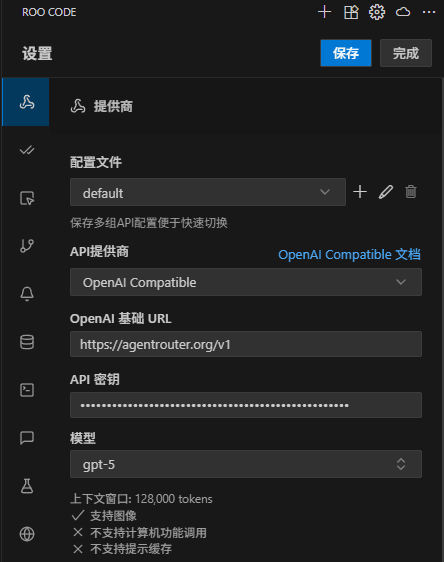
After installing RooCode, open the extension and configure a new provider:
- Open RooCode settings
- Select Configure Provider
- Add a new OpenAI Compatible provider with the following settings:
| Setting | Value |
|---|---|
| OpenAI Base URL | https://agentrouter.org/v1 |
| API Key | Your key from agentrouter.org/console/token |
| Model | gpt-5 (or glm-4.5, glm-4.6, deepseek-v3.1, etc.) |
- Save the configuration and start using RooCode!
Available Models
| Model | Description |
|---|---|
gpt-5 | Latest GPT model (recommended) |
glm-4.5 | GLM 4.5 model |
glm-4.6 | GLM 4.6 model |
deepseek-v3.1 | DeepSeek V3.1 model |
deepseek-v3.2 | DeepSeek V3.2 model |
Tip
You can switch between different models in RooCode settings based on your needs. The gpt-5 model is recommended for best performance.
Troubleshooting
If you encounter issues:
- Verify your API key - Make sure you've copied the correct key from AgentRouter Console
- Check the base URL - Ensure you're using
https://agentrouter.org/v1(with/v1suffix) - Restart VSCode - Sometimes a restart is needed after configuration changes